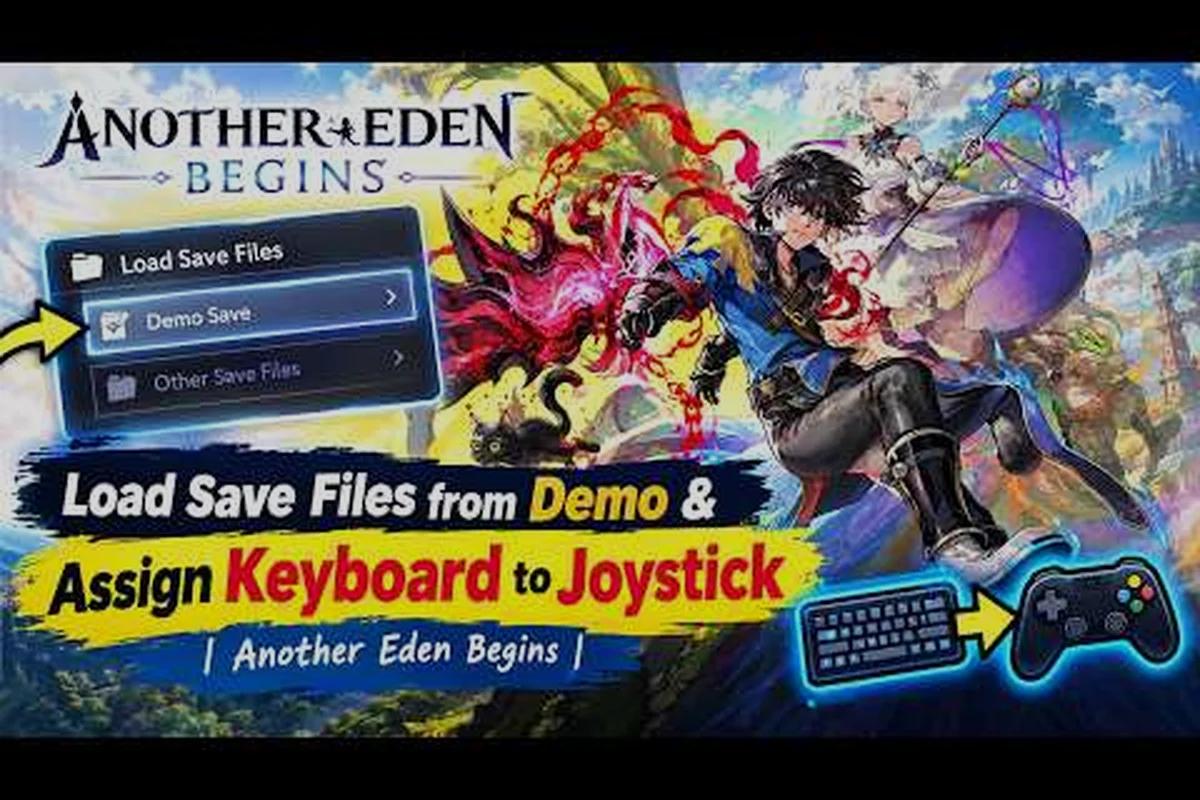
Picking the right input method changes how this single-player JRPG feels on day one. The latest Steam listing confirms Another Eden Begins launched on September 16/17, 2026 at $39.99, so fresh players are walking in with mixed hardware — DualSense pads, Xbox controllers, Switch 2 Joy-Cons, and the keyboard crowd. This Another Eden Begins controller guide breaks down which setup plays best on each platform, how to remap bindings, and where auto-battle actually saves time without ruining your skill timing. controllers, Switch 2 Joy-Cons, and the keyboard crowd. This Another Eden Begins controller guide breaks down which setup plays best on each platform, how to remap bindings, and where auto-battle actually saves time without ruining your skill timing, while pairing these setup tweaks with the encounter-by-encounter planning found in our Another Eden Begins 100 Percent Guide so you can map the right input to every fight on the road to full completion.
Controller vs Keyboard vs Touch: Which Input Fits the Battle System
Another Eden Begins runs on a command-based turn system where party synergy fills the Another Force gauge before you unleash a combined super move. The battle pacing is deliberate, but menu navigation (skills, items, equipment, party swap) is where the input choice really shows. According to the English official website, encounters, character quests, and kinship quests all trigger from a clean top-down field view, so the camera and cursor have to feel right across the board.
On PC, both gamepad and keyboard are fully supported, and the Steam Community threads have already shared working binding templates. On Switch 2, the Joy-Con 2 SL/SR buttons and gyro aim (if you opt in) replace the touch screen entirely. The mobile port retains touch input, but a paired Bluetooth controller behaves identically to the Switch layout. Each method has trade-offs, and the table below summarizes how they stack up for a typical encounter.
| Input Method | Best For | Strengths | Weaknesses |
|---|---|---|---|
| Xbox / DualSense gamepad | Couch play, relaxed pacing | Ergonomic, gyro aim on Switch 2, plug-and-play on PC | Requires occasional stick for cursor on dense menus |
| Keyboard + mouse | Fast menu cycling, hybrid desktop players | Instant hotkey access, precise cursor, ideal for crafting | Less comfortable for long dialogue sessions |
| Switch 2 Joy-Con 2 | Handheld, tabletop, TV mode | Native Switch support, HD rumble, gyro aiming | Smaller stick travel for precise AF gauge timing |
| Touch screen | Mobile-only players | No extra hardware, direct menu taps | Slower for repeated skill chains in boss fights |
For most players, a gamepad is the cleanest match to the JRPG's design philosophy. The encounter camera is fixed, so the left stick moves the field cursor while the right stick snaps the camera — a layout gamepads handle natively. Keyboard players still win on the inventory and equipment screens because the mouse skips the cursor grid entirely, but combat feels tighter with a pad because every face button is bound to one of the four command slots by default.
Default Bindings on Steam and Switch 2
The Steam version ships with sensible controller defaults that mirror the Switch 2 layout. Face buttons cycle commands, triggers open menus, and bumpers swap party members without leaving the battle screen. The official Switch 2 eShop listing confirms TV, tabletop, and handheld modes are all supported, and the HD rumble fires on critical hits — a feature the keyboard obviously cannot replicate.
Players who want to remap should head into the in-game Options → Controls screen. Both Steam Input and native Switch input let you rebind the four command slots (A / B / X / Y on Xbox, Cross / Circle / Square / Triangle on DualSense). Community testing on the Steam Community page suggests leaving the bumpers as party swap is the most efficient preset — rebinding them to skills usually causes more misfires than gains during the Another Force window.
Best Controller Setup for Steam Players
Steam on PC offers the deepest remapping layer of any platform, and Another Eden Begins exposes every battle action to that layer. The recommended approach is to use Steam Input as a global layer rather than relying on the in-game remap alone, because Steam Input can save per-game profiles that survive a controller unplug or a driver update.
According to the Another Eden Begins Steam store page, the game supports full controller input along with keyboard and mouse, making it easy to map movement, skills, and menu navigation to a gamepad on PC.
Recommended Steam Input Profile
The default face-button layout (Attack, Skills, Items, Guard) maps cleanly to A/B/X/Y on Xbox controllers, but Steam Input lets you add a Shift layer for advanced actions. Bind the left or right grip as a Shift modifier, and you unlock four more actions on the same face buttons without losing muscle memory. The most popular community binding, according to the Steam Community discussions, looks like this:
| Button | Default Action | Shift Layer (Hold Left Grip) |
|---|---|---|
| A / Cross | Attack | Use current item |
| B / Circle | Skills menu | Open character menu |
| X / Square | Items menu | Cycle party member |
| Y / Triangle | Guard | Confirm / interact |
| Right Bumper | Swap to next party | Swap to previous party |
| Left Trigger | Open map | Open Another Force menu |
| Right Trigger | Confirm | Cancel / back |
The Shift layer keeps the battle flow uncluttered. If you find the trigger pull uncomfortable, swap the Shift modifier to Back / Select — most controllers have an unused button there, and the Steam Input software can even turn the trackpad click into a Shift toggle on DualSense pads.
Steam Controller Tips for Faster Menus
Steam Big Picture and the desktop overlay both let you set per-game sensitivity curves for the analog sticks. Because Another Eden Begins' encounter camera snaps in fixed increments, a linear curve (instead of the default exponential) helps the camera feel less jumpy when you flick the right stick. Apply this only to the right stick — the left stick still wants a soft ramp so the field cursor stops precisely on a quest giver.
Another high-leverage tip: bind the D-pad to quick-slot items. The game allows four registered items in the battle menu, and the D-pad is the most ergonomic place to reach for them mid-fight. This single change cuts roughly a second off every potion use during boss enrages, which adds up across a long session.
Switch 2 Edition: Native Layout and Gyro Options
The Nintendo Switch 2 Edition runs at up to 60 FPS with enhanced 4K graphics in TV mode, according to the official Nintendo store page. The file size is 11.1 GB, and the listing confirms full HD rumble plus gyro sensor support. Gyro is optional, so you can leave it off if you prefer a pure stick layout — the choice is in the Settings → Gyro submenu.
The default Switch layout is well-tuned for handheld mode. The right stick rotates the camera in small increments, and the ZL / ZR triggers map to map and menu without forcing your thumbs off the face buttons. In tabletop mode, the bigger Joy-Con 2 SL/SR buttons become the natural home for confirm and cancel, which is faster than reaching for the touchscreen.
If you dock the Switch 2 and play on a TV, gyro becomes more useful. A small flick of the right stick adds precise camera control during boss intros, where the camera usually pans to a fixed angle. Players who turn gyro sensitivity to 30% in the settings menu report the smoothest results — anything higher feels twitchy in long sessions.
Keyboard Setup: When It Beats the Gamepad
Keyboard play is not just viable — in some menus it is strictly faster. The crafting system that the Steam community is currently exploring, the equipment stat comparison screen, and the character roster are all grid-based interfaces. A mouse click selects any cell instantly, while a controller has to walk the cursor there. If you spend most of your session in town, leveling up, or reorganizing gear, keyboard + mouse is the cleanest option.
The default keyboard layout puts the 1-4 number keys on the four command slots, which is awkward because they sit far from the movement keys. Community-tested alternatives bind Q / W / E / R to the commands and keep WASD for field movement. This puts every battle action under the left hand, leaving the right hand free to mouse over to the inventory or crafting window.
| Action | Default Key | Recommended Key | Reason |
|---|---|---|---|
| Attack | 1 | Q | Close to WASD, single-tap muscle memory |
| Skills | 2 | W | Top-row key near movement |
| Items | 3 | E | Matches E for "equip" mental model |
| Guard | 4 | R | Rightmost top-row key, avoids misfire |
| Confirm | Enter | Space | Larger key, thumb-friendly |
| Cancel | Escape | Tab | Frees Escape for menu pause |
| Map | M | F | Easy reach, no menu overlap |
| Swap Party | Tab | Shift | Modifier key, no accidental press |
Players who split their time between battle and town can also bind a secondary layer to the Caps Lock key. Caps Lock is rarely used in an RPG, and it gives you a second row of four skills without forcing you to open the in-game skills menu mid-fight. This setup is especially helpful during the late-game Another Force windows, where four characters each need to fire a specific skill in the right order.
Auto-Battle: When to Use It, When to Skip It
Auto-battle in Another Eden Begins is not a global "skip combat" toggle — it is a per-encounter tool that selects a default command each turn. The system reads the party's average level and elemental matchup to choose between Attack and the strongest available skill. It does not handle Another Force timing for you; that still requires manual input.
The smart way to use auto-battle is in filler encounters between boss checkpoints. The field is full of weak enemies that exist to drain your time more than your resources. Set auto-battle on, watch the screen, and only tap to intervene if a rare enemy with a high item drop appears. According to community data shared on the Reddit subreddit, this hybrid approach saves roughly 30% of a typical two-hour session for players who only care about the story beats.
| Encounter Type | Auto-Battle Recommended? | Why |
|---|---|---|
| Field mobs below your level | Yes | Auto-handles Attack spam, lets you skip animations |
| Mid-game dungeon trash | Partial | Use auto for Attack, manual for the finishing skill |
| Boss fights | No | Manual input is required for Another Force timing |
| Bonus dungeons with rare drops | No | Auto-battle skips conditional skills that boost drop rates |
Auto-battle is also a poor choice during any quest that requires preserving an enemy's HP (for dialogue triggers) or that punishes overkill. Some quest givers will refuse to spawn if the enemy is dead before their line plays, so leaving auto-battle on through a story encounter can soft-lock the quest until you reload.
Co-Op and Multiplayer: Where It Stands
The Another Eden Begins Steam store page describes the title as a single-player, time-travel RPG, and the official website confirms the main campaign is solo. There is no live co-op or PvP mode in the base game. What does exist is asynchronous support: a friend support system that lets you borrow another player's party member for a single tough fight, similar to the original Another Eden mobile game.
This is the closest the game comes to the co-op experience some newcomers search for. Borrowed units are capped at one per battle, and they level-scale to your current party average, so a borrowed carry is balanced for fairness rather than a true carry. If a fight is brickwalling you, swap to manual input, pull a borrowed unit, and chain your Another Force manually — auto-battle ignores borrowed units entirely.
Players who want a deeper co-op loop should look forward to community mods on PC. The Steam Workshop is not officially supported, but a small modding scene is already forming around save editors and rebalance patches. None of these add real co-op, but they do add shared leaderboards for speedrunners, which is the closest official-style competition the game offers right now. Anyone chasing a 100% clear should plan for solo play and check the 100% completion route to plan the full trophy list.
Frequently Asked Questions
Does Another Eden Begins support DualSense on Steam?
Yes. The PC version detects DualSense automatically and maps the standard PlayStation layout (Cross / Circle / Square / Triangle). HD rumble and the touch pad work through Steam Input once you enable PlayStation controller support in the Big Picture settings.
Can I remap buttons without opening Steam Input?
Yes. The in-game Options → Controls menu exposes a basic remap layer that covers face buttons, triggers, and bumpers. It does not include modifier layers or per-game profiles, so power users will still want to use Steam Input on top of the in-game menu.
Is auto-battle bad for the game?
Auto-battle is fine for filler encounters but bad for boss fights and quest-sensitive encounters. The system picks the strongest available skill, so it ignores Another Force timing and any quest that requires specific enemy states. Keep manual input ready for any fight that matters.
Is there real co-op in Another Eden Begins?
No. The base game is single-player only. The friend support system lets you borrow one party member from another player for a single fight, but there is no live co-op, no shared campaign, and no PvP. Anyone looking for a co-op JRPG will need to look elsewhere for a true multiplayer experience.
Should I play with a controller on PC or the keyboard?
Both work well. Controller is more comfortable for long dialogue sessions and matches the Switch 2 layout, while keyboard + mouse is faster in the inventory, crafting, and character roster screens. The best setup is a controller for battles and exploration, keyboard for menus — or one good gamepad profile that handles both.